How to Doodle
Draw on the image
The title of the window is the label that will be associated with the pixels you draw on, by holding down the left mouse button.
- After you are done with label (or if you need to skip a class because it is not present in the current tile) press
escape(Esckey, usually the top left corner on your keyboard). - You can increase and decrease the brush width with (number)
1 / 2keys. - You can also undo a mistake with the
zkey. Note thatzwill remove all doodle lines of a class if pressed, not just a single line. - Use
sto skip forward a square (note that this will not record any labels done on the current square - this feature is for squares with no labels to make) - Use
bto go back a chunk. Note thatbdoesn’t go back a class, but an entire chunk.
If your mouse has a scroll wheel, you can use that to zoom in and out. Other navigation options (zoom, pan, etc) are available with a right mouse click.
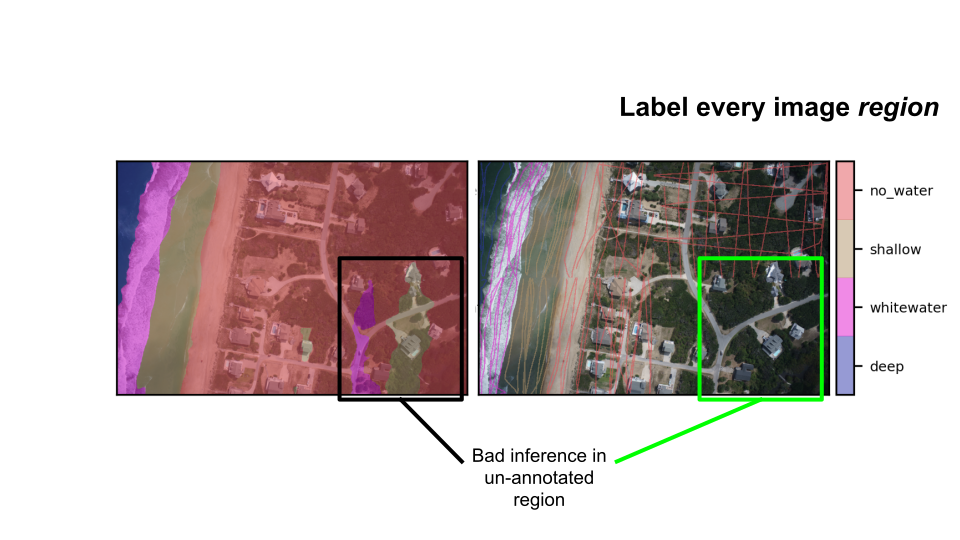
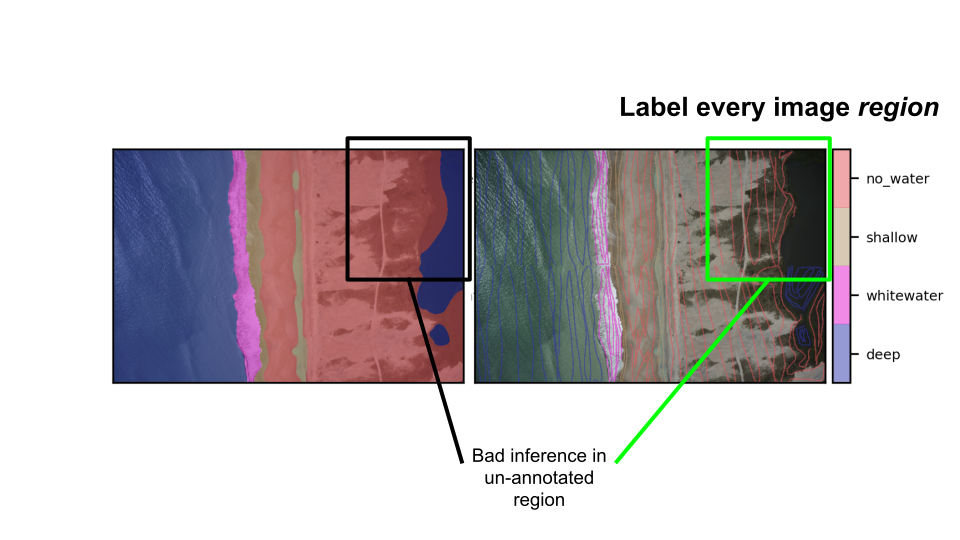
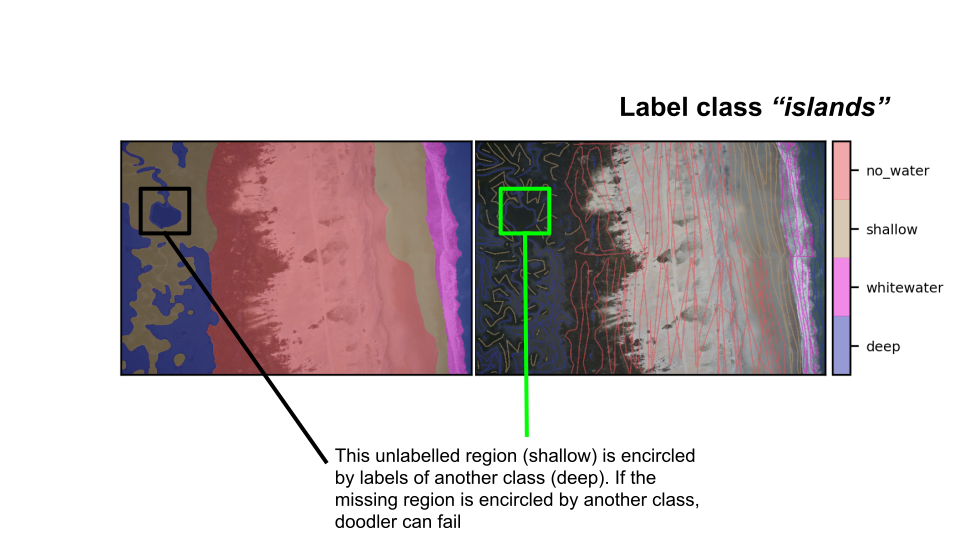
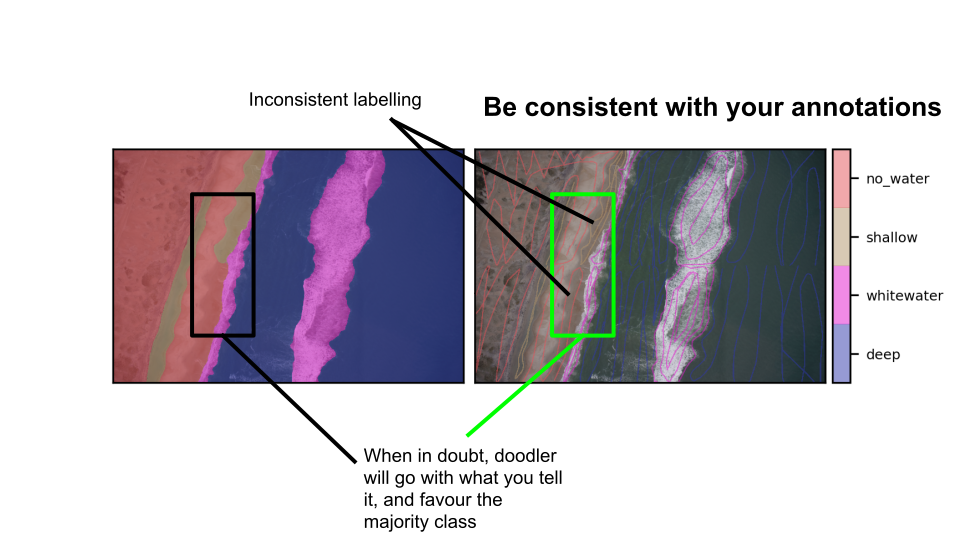
A visual guide
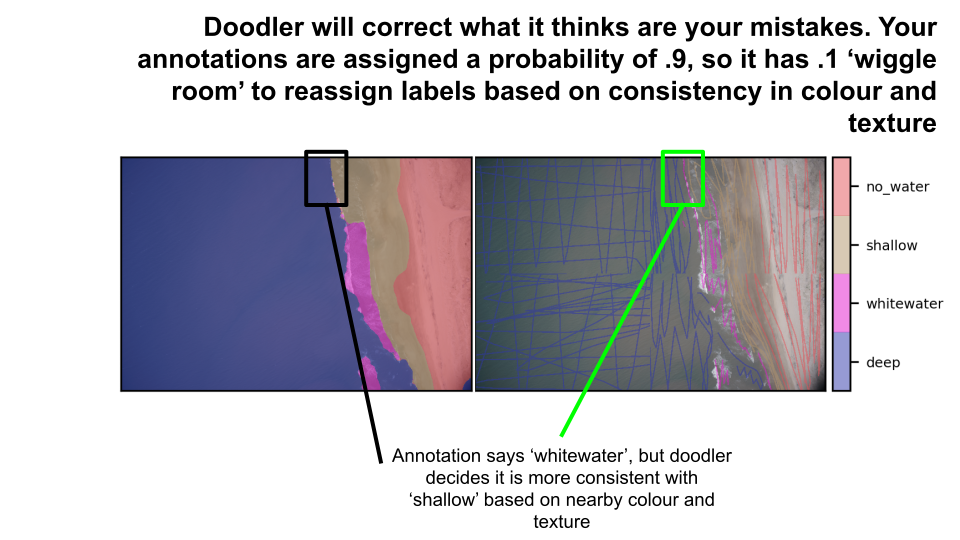
In each of the graphics below, an image is overlain with a semi-transparent mask, colour-coded by class label, as indicated by the colorbar. The image on the left is the output of the model (segmented label image) and the image on the right is the annotations (or doodles) provided by a human.